 Black Screen After Startup – Causes, Fixes, and Startup Display Checks
A black screen after startup happens when your computer turns on, but the display never reaches the desktop normally.
You may hear fans spinning, see keyboard lights turn on, or notice the computer responding in the background, but the monitor remains black. This problem can feel confusing because the device may seem alive even though nothing appears on screen.
Startup black screens are usually caused by display cable issues, graphics driver failures, BIOS or boot problems, GPU instability, RAM issues, or Windows loading errors.
A computer may appear to boot normally even while the display remains completely black.
What Does Black Screen After Startup Mean?
A black screen after startup means the system has begun the boot process, but visual output fails before the desktop is fully usable.
This is different from a monitor that is completely powered off. In many cases, the computer is running, but the screen is not showing the expected image.
When Does the Black Screen Appear?
The timing of the black screen helps identify the cause.
- Before logo appears: possible hardware, BIOS, RAM, GPU, or cable issue
- During Windows loading: possible driver or startup configuration issue
- After login: possible graphics driver, desktop shell, or startup software issue
- After sleep mode: possible power management or display wake issue
Black Screen During Windows Loading
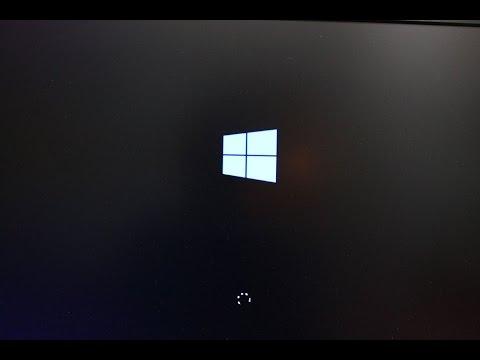
One common version of this problem happens when the startup logo appears briefly, then the screen turns black before the desktop loads.
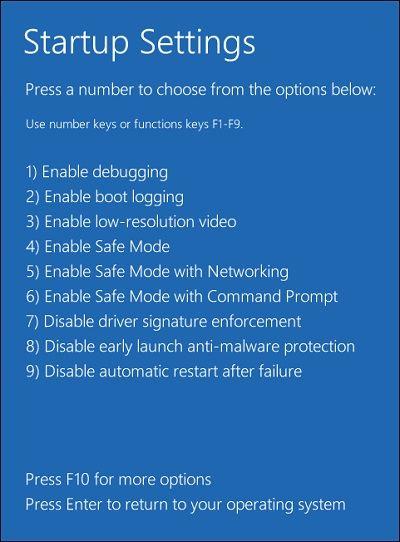
Some startup black screen problems happen while Windows is loading drivers and system processes.
This often points to a graphics driver conflict, display initialization failure, corrupted startup process, or Windows update issue.
Common Causes of Black Screen After Startup
1. Loose HDMI or DisplayPort Cable
A loose display cable can make the computer boot normally while the monitor fails to show output. This is one of the simplest causes to check first.
2. Wrong Monitor Input Source
If the monitor is set to the wrong HDMI or DisplayPort input, the computer may be running while the monitor remains black.
3. Graphics Driver Failure
Graphics drivers load during startup. If the driver crashes or fails to initialize, the screen may turn black before the desktop appears.
4. Windows Startup Error
Startup files, corrupted updates, or broken system components may prevent Windows from completing the boot process correctly.
5. BIOS or Boot Configuration Problem
If the display fails very early during startup, BIOS settings or boot configuration may be involved.
6. GPU or RAM Instability
Faulty RAM, poor GPU seating, overheating, or unstable hardware can also cause startup display failure.
How to Fix Black Screen After Startup
Step 1: Check Monitor Power and Input
Make sure the monitor is turned on and set to the correct input source. If your monitor has multiple input modes, switch between them carefully.
Step 2: Reconnect the Display Cable
Unplug and reconnect HDMI or DisplayPort cables from both the monitor and computer. If possible, test another cable.
Step 3: Restart the Computer Completely
Hold the power button to shut the system down fully, wait a few seconds, then restart. Temporary startup failures sometimes resolve after a clean reboot.
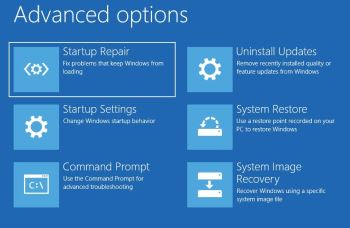
Step 4: Enter BIOS or Recovery Mode
If the screen appears before Windows loads, the monitor and GPU may still be working. That means the problem may be related to Windows startup or drivers.
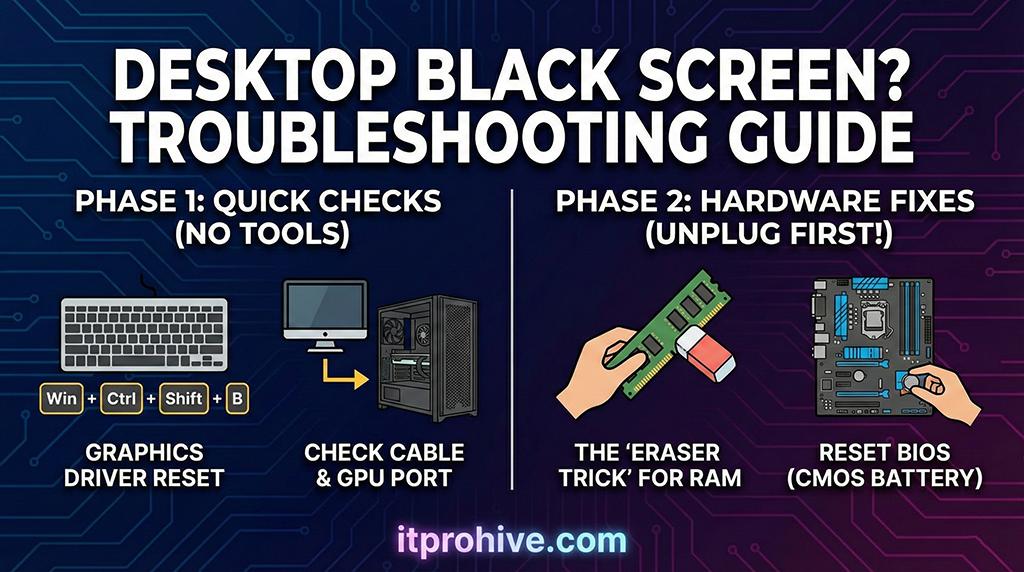
Accessing BIOS or recovery tools can help determine whether the startup problem is hardware or software related.
Recovery tools may help you repair startup files, uninstall recent updates, remove problematic drivers, or restore the system to an earlier point.
Step 5: Boot Into Safe Mode
Safe Mode loads Windows with minimal drivers. If Safe Mode works, the issue is likely related to a driver, startup app, or display configuration.
Step 6: Check GPU, RAM, and Display Connections
If the black screen continues, inspect hardware connections carefully.

Display cables, RAM, and GPU connections should be checked carefully when startup black screens continue.
Check GPU seating, RAM modules, power cables, monitor cables, and display output ports. A slightly loose connection can cause startup display failure.
Using a Fullscreen Black Screen After Recovery
After fixing the startup issue, you can use a fullscreen black screen to inspect the monitor itself.
A fullscreen black screen can help identify backlight bleeding, stuck pixels, and display uniformity issues.
A black background may help reveal display problems that are hard to see on bright screens, including backlight bleeding, uneven brightness, OLED uniformity issues, and bright stuck pixels.
Open Fullscreen Black Screen Tool
When You Should Be Concerned
You should take the problem more seriously if the black screen happens every time you start the computer, the system cannot enter BIOS, the monitor loses signal repeatedly, or the computer shuts down during startup.
These signs may point to deeper hardware problems involving the GPU, RAM, motherboard, power supply, or monitor.
Related Guides
- Why Is My Screen Black?
- Black Screen of Death
- Screen Goes Black Randomly
- Monitor Black Screen No Signal
Frequently Asked Questions
Why does my computer turn on but the screen stays black?
This usually means the computer is powered on, but video output is not reaching or displaying correctly on the monitor.
Can Windows startup cause a black screen?
Yes. Driver conflicts, broken updates, and startup errors can cause the screen to turn black before the desktop appears.
Can BIOS problems cause black screens?
Yes. Incorrect boot settings or early hardware initialization problems can prevent proper display output.
Can RAM cause a black screen after startup?
Yes. Faulty or poorly seated RAM can prevent the system from completing startup correctly.