Monitor Black Screen No Signal – Causes, HDMI Checks, and Fixes
A monitor showing a black screen with a “No Signal” message usually means the display cannot detect video input from the computer.
In many cases, the monitor itself is working normally, but the video signal never reaches the screen correctly. This problem is commonly caused by loose HDMI cables, incorrect monitor input selection, GPU connection issues, damaged display ports, or unstable hardware.
Unlike a normal black screen, a “No Signal” message specifically means the monitor is powered on but cannot find an active display source.
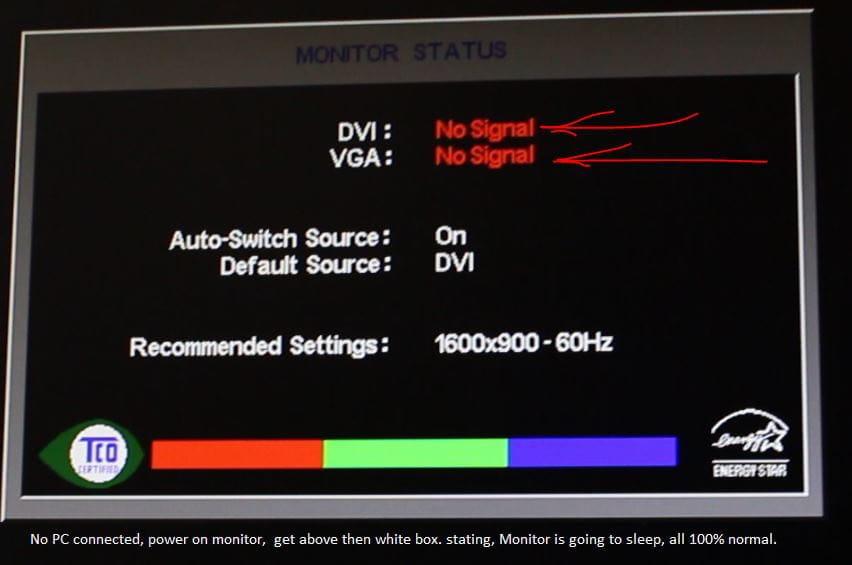
A no signal message usually means the monitor cannot detect video input from the computer.
What Does No Signal Mean?
“No Signal” appears when the monitor is active but receives no usable display signal from the computer.
This can happen because:
- The display cable is disconnected
- The wrong monitor input is selected
- The GPU is not outputting video
- The computer failed to initialize the display correctly
- The monitor cannot detect the connected source
Black Screen vs No Signal
These are related but different problems.
- Black Screen: the monitor is on but shows no visible desktop or image
- No Signal: the monitor cannot detect any incoming video source
A no signal message usually points more directly to cable, connection, GPU output, or monitor input problems.
Common Causes of Monitor No Signal Problems
1. Loose HDMI or DisplayPort Cable
A disconnected or unstable cable is one of the most common causes of no signal issues.
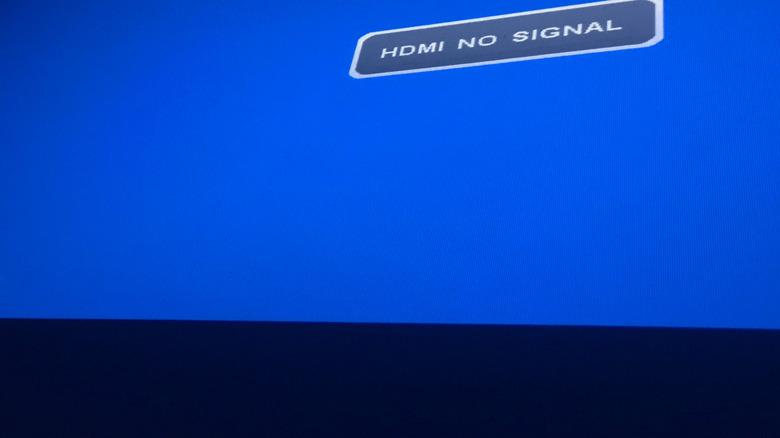
Loose or damaged display cables are one of the most common causes of no signal problems.
Check:
- HDMI cable condition
- DisplayPort connection stability
- Monitor input ports
- GPU output ports
2. Wrong Input Source
Many monitors support multiple input modes such as HDMI 1, HDMI 2, and DisplayPort.
If the wrong source is selected, the monitor may display “No Signal” even though the computer is running correctly.
3. GPU Output Problems
The graphics card may fail to send proper video output because of hardware instability, overheating, driver issues, or incorrect port usage.
4. Multi-Monitor Configuration Problems
External monitors or dual-monitor setups sometimes cause the system to send output to the wrong display.
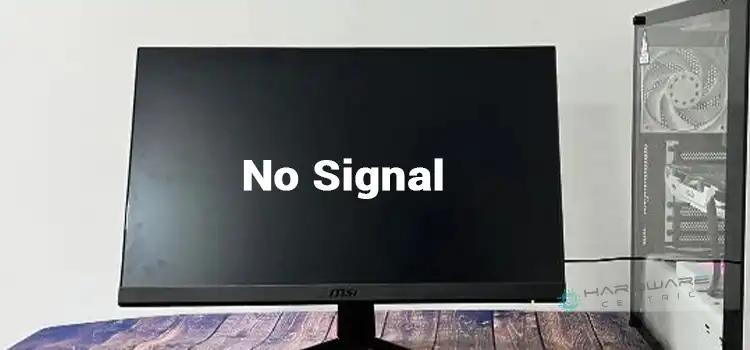
Incorrect GPU connections or multi-monitor configuration problems may prevent the monitor from receiving video output.
5. Faulty Monitor or Display Port
Damaged monitor hardware, failing display ports, or unstable internal components may also prevent signal detection.
How to Fix Monitor No Signal Problems
Step 1: Check Monitor Power
Make sure the monitor is powered on properly and the power indicator light is active.
Step 2: Reconnect HDMI or DisplayPort Cables
Disconnect and reconnect display cables carefully from both the monitor and the computer.
If possible, test another cable to eliminate signal instability.
Step 3: Select the Correct Input Source
Open the monitor input menu and manually switch between HDMI, DisplayPort, or other available sources.
Step 4: Test Another Monitor
Testing another display helps determine whether the problem comes from the monitor or the computer itself.
Step 5: Check GPU Output Ports
Ensure the monitor cable is connected to the correct graphics output port.
Many desktop systems have both motherboard video outputs and dedicated GPU outputs. Connecting to the wrong port may produce no signal.
Step 6: Restart the Computer Completely
Temporary startup or GPU initialization issues may disappear after a full restart.
Using a Fullscreen Black Screen After Repair
Once the signal problem is fixed, a fullscreen black screen can help inspect overall monitor condition.

A fullscreen black screen can help verify monitor condition after resolving no signal issues.
Dark fullscreen backgrounds may help reveal:
- Backlight bleeding
- Uneven brightness
- Bright stuck pixels
- Display uniformity problems
Open Fullscreen Black Screen Tool
When the Problem Is Serious
You should consider deeper hardware inspection if:
- The monitor repeatedly loses signal
- The GPU overheats frequently
- Multiple cables fail to work
- The system cannot output video to any display
These situations may indicate GPU failure, motherboard problems, monitor hardware instability, or power supply issues.
Related Guides
Frequently Asked Questions
Why does my monitor say no signal?
This usually means the monitor cannot detect video input from the computer.
Can HDMI cables cause no signal problems?
Yes. Loose or damaged HDMI cables are one of the most common causes.
Can the GPU cause no signal?
Yes. Faulty GPU output, overheating, or incorrect connections may prevent the monitor from receiving video.
Can the monitor itself be the problem?
Yes. Damaged display ports or failing monitor hardware can also produce no signal warnings.